Northern Lights Photography
Mobile Guide

Smartphone Settings
for Northern Lights

How to capture the aurora with your iPhone or Android. No professional gear needed.
5 min read Mobile Guide By Arcticlyn

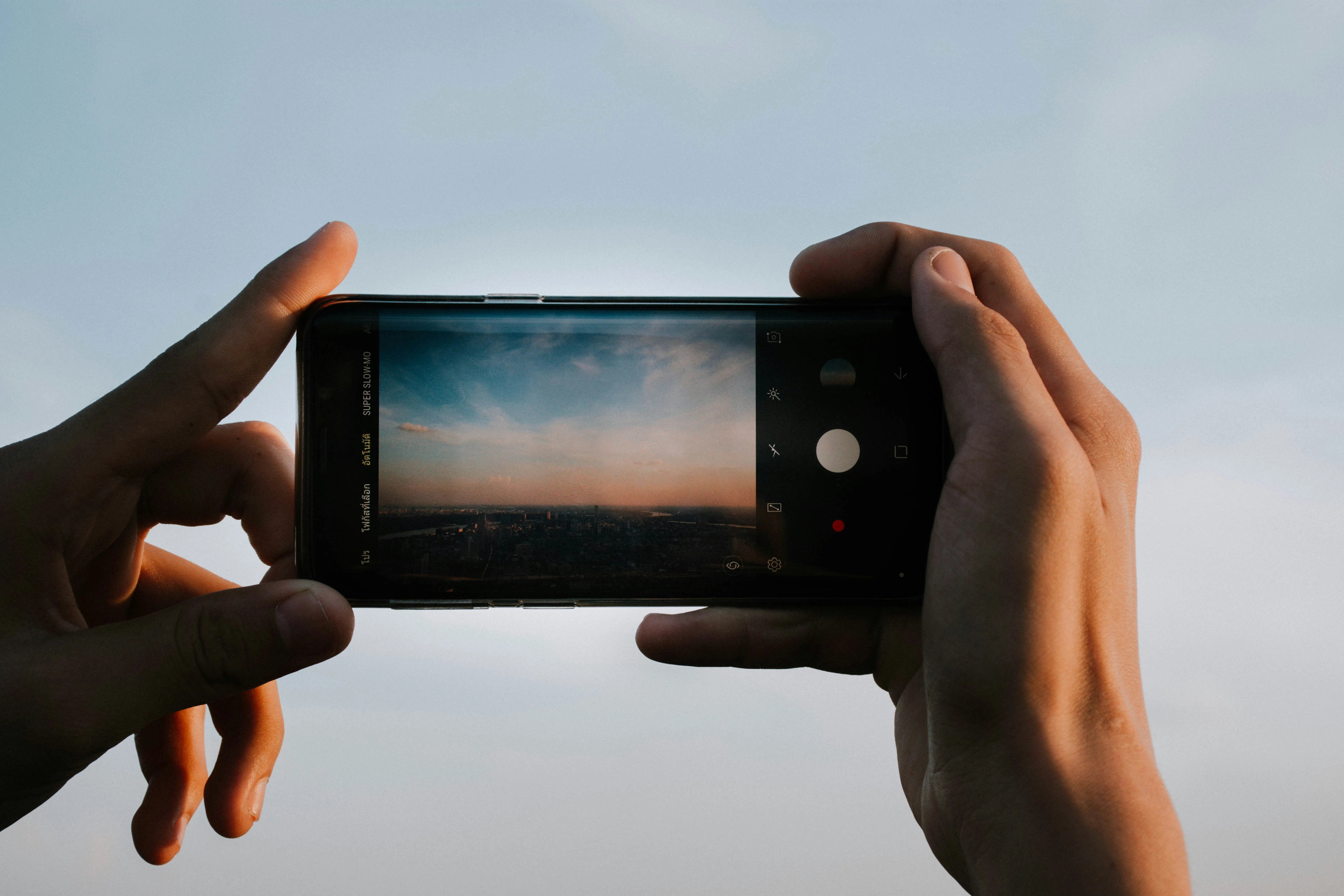
You don't need a heavy DSLR, a box of lenses, or years of manual photography experience to capture the northern lights. The smartphone in your pocket is equipped with sensors and computational photography systems that can pull vibrant colors and sharp details out of the dark. By understanding how to stabilize your phone and adjust a few default camera controls, you can capture breathtaking photos of the aurora to remember your stay.

01
Foundations
Keep it steady:
Stability is key

"A blurry photo is a discarded photo. The secret to noctography is absolute stillness."

— Arcticlyn Photo Team

Because the northern lights appear in pitch-black conditions, your phone needs to keep its shutter open for several seconds to collect enough light. If you hold the phone in your hands, the microscopic shaking of your muscles will blur the stars and turn the aurora into a hazy green smudge.

To avoid this, use a pocket tripod, clamp the phone to a railing, or prop it up securely against a solid surface (like a fence post or backpack).
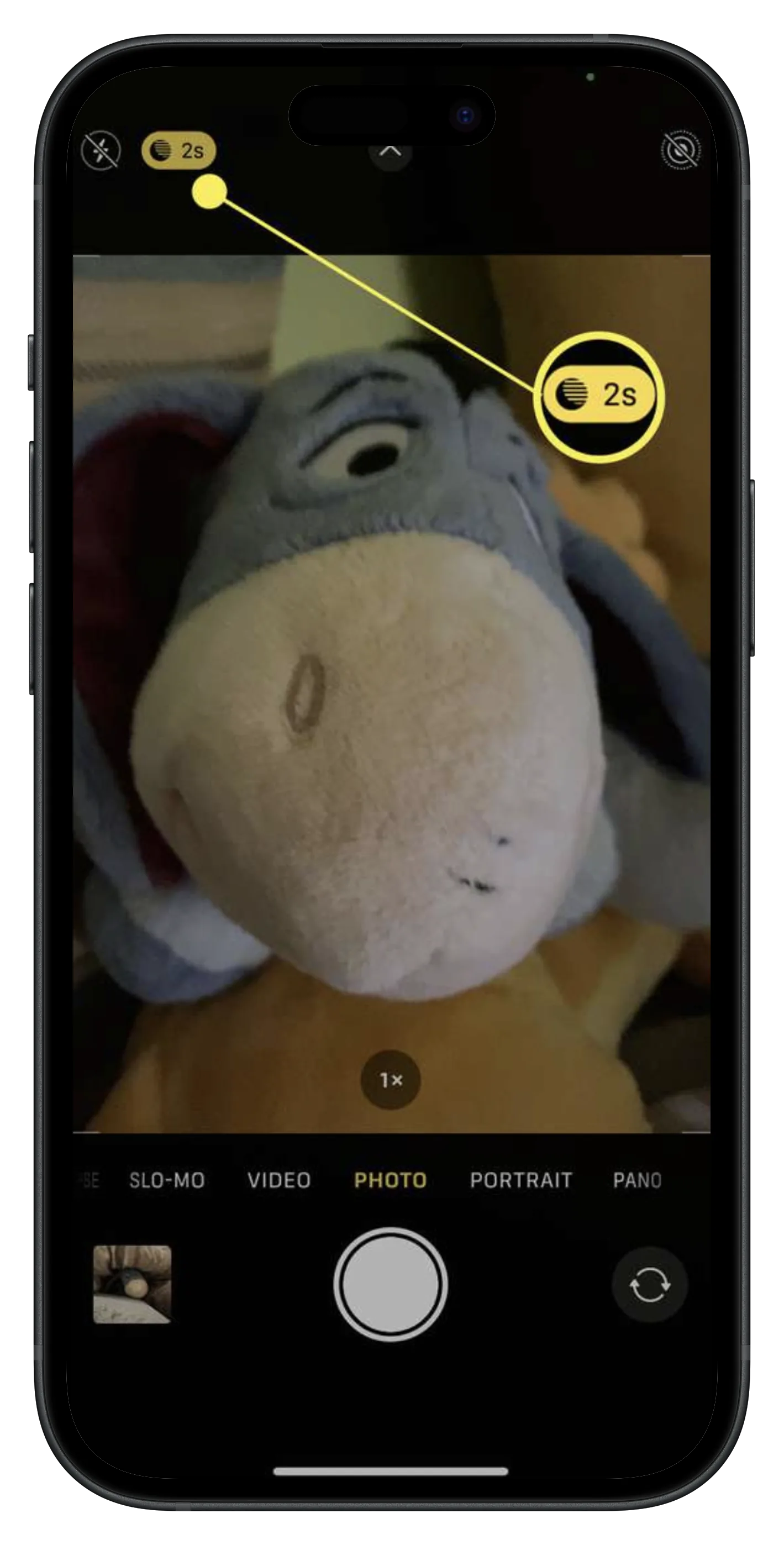
Use the 3-Second Timer: When you press the screen shutter button with your finger, you introduce a slight vibration right at the start of the exposure. Always set your camera app's built-in self-timer to 2 or 3 seconds.

This delay gives the phone time to stop vibrating after your hand leaves the screen, ensuring a clean, sharp capture from the very first millisecond.

Stability Tips
3s
Shutter Delay
Tripod
strongly recommended
Off
Handheld mode
0
Physical touch during shot
02
iOS Devices
Unlocking iPhone
Night Mode

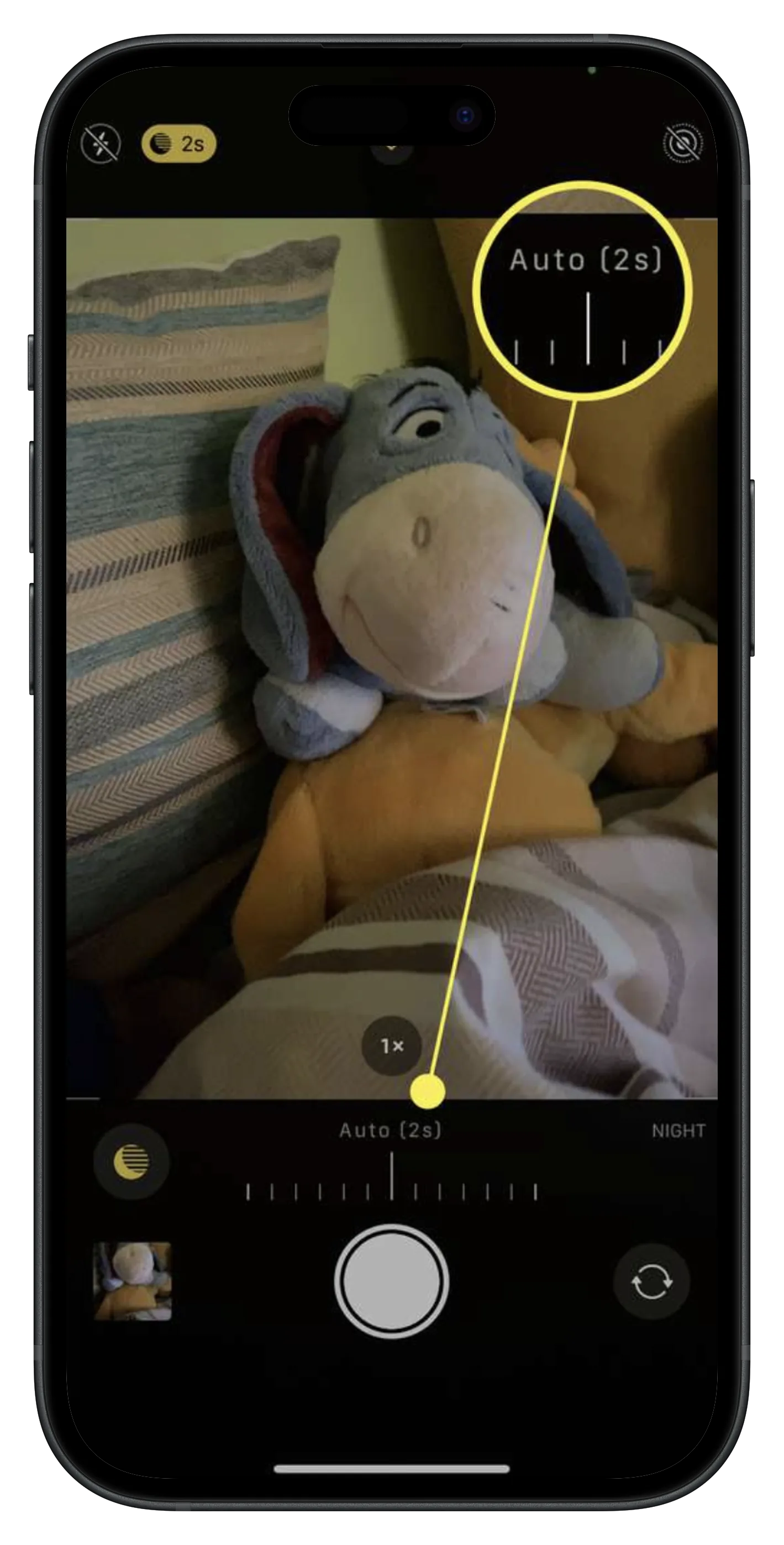
iPhones feature a powerful automatic **Night Mode** (indicated by a yellow moon icon). When your iPhone detects darkness, it turns on Night Mode automatically. However, by default, it might only set the exposure time to 2 or 3 seconds. To get a vivid aurora shot, you should manually increase this duration.

Tap the Night Mode moon icon at the top of your screen, then drag the slider above the shutter button to the right to select Max. If the phone is handheld, Max will be around 10s. If the phone is on a tripod and detects no movement, it will unlock up to 30 seconds of exposure, capturing detail you can't even see with the naked eye.

"Drag the slider to Max. If your iPhone is perfectly still, it will automatically activate the full 30s exposure."

— iOS Photo Guide
iPhone Night Mode UI iPhone Night Mode slider
Night Mode setting · iPhone Camera App

Make sure to turn Live Photo OFF (the circular rings icon) and keep the flash disabled. Live Photos force the camera to take a quick video file, which reduces low-light performance. Focus on a distant tree or mountain by tapping the screen, then hold down for a second to lock the focus (AE/AF Lock).

03
Android Devices
Mastering Android
Pro & Night Modes

Most modern Android devices (Samsung Galaxy, Google Pixel, Xiaomi, OnePlus) have dedicated Night/Night Sight modes. While Night Sight works perfectly with one tap, you can unlock professional-grade aurora photos by entering your camera's Pro Mode (sometimes called Manual Mode).

Once in Pro Mode, adjust these key settings manually:

ISO: Set this between 800 and 1600. Higher values (like 3200) make the photo brighter but add digital noise (grain).

Shutter Speed (S): Set between 4 and 10 seconds. If the aurora is moving fast, use a shorter shutter speed (4s) so the colors don't blur together. If it is faint, stretch it to 10s or 15s.

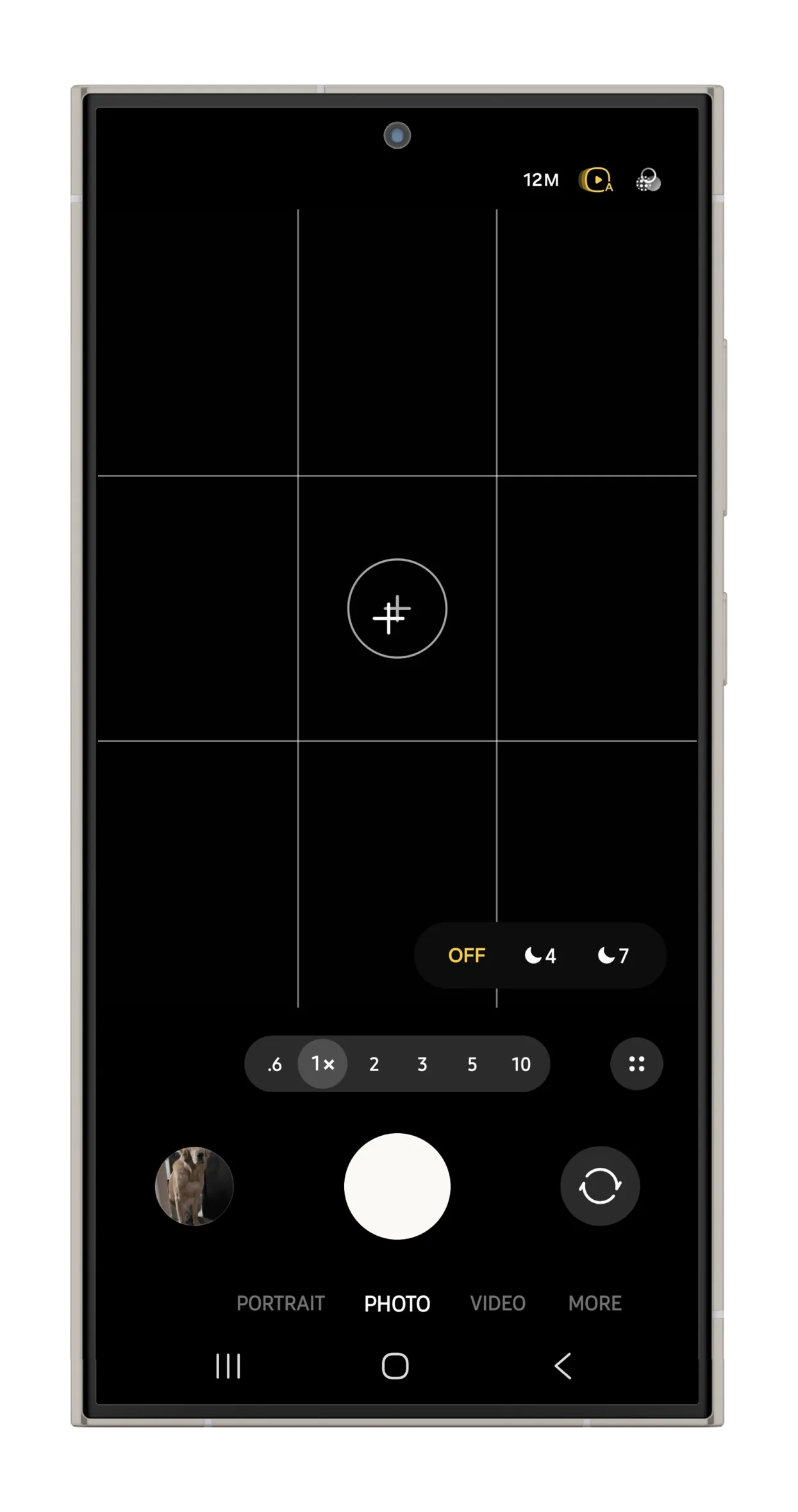
"Pro Mode puts you in control. Tweak the ISO and Shutter Speed until the green bands appear vibrant."

— Android Expert Guide
Camera settings on mobile
Manual Camera controls on mobile

Focus (F): Set the focus slider all the way to Infinity (represented by a mountain icon or the symbol ∞). This forces the lens to focus on the distant stars and sky, rather than searching for focus in the dark.

If your phone doesn't have a Pro mode, Google Pixel users can use Astrophotography Mode, which turns on automatically in Night Sight when the phone is on a tripod and captures stars and auroras with unmatched clarity.

04
Extra Details
Essential tips & tricks
for perfect captures

"A dirty lens will turn a magnificent aurora into a foggy, smeared green haze."

— Arcticlyn Pro Tips

1. Clean Your Lens: Phones live in pockets and collect fingerprints and grease. Before you step out into the cold, wipe the camera glass with a microfiber cloth. A clean lens ensures stars remain sharp points of light instead of blurry streaks.

2. Disable Nearby Lights: If your hotel room window light or your phone's own screen is very bright, it can reflect inside the phone lens (lens flare). Turn off room lights, step away from streetlights, and turn down your phone screen's brightness to protect your night vision.

3. Use a Third-Party App: If you are using an older iPhone that doesn't support native Night Mode, or if you want manual controls like Android's Pro Mode on iOS, download a camera app. Apps like Halide, ProCamera, or the free Northern Lights Photo Taker give you full control over ISO, shutter speed, and manual focus.

4. Preserve Battery: Sub-zero Arctic temperatures drain smartphone batteries rapidly. Keep your phone in an inside pocket close to your body heat until the moment you set up your shot, and carry a portable power bank.

The Experience

Capture the memory,
then enjoy the view.

It's easy to get lost behind the screen trying to adjust settings and capture the perfect image. But remember to look up. The sensors in modern phones work through computational stacking to reveal colors and details that our eyes sometimes struggle to process in the dark, but the real magic is seeing the curtains dance in real-time.

Set up your phone on a tripod, start a self-timer, tap the button, and step back. Let the phone do the work while you stand under the arctic sky and enjoy the dance. You'll end up with both: a beautiful, crisp image to share and a memory that stays with you forever.

Heading out tonight? Check the forecast first.

View Real-time Forecast →